Connect Grok Bot to Your Business Tools Without Handing Over the Keys
The real implementation work is access. Here's how to connect your business tools to Grok Bot with the right boundaries.
The Real Implementation Work Is Access
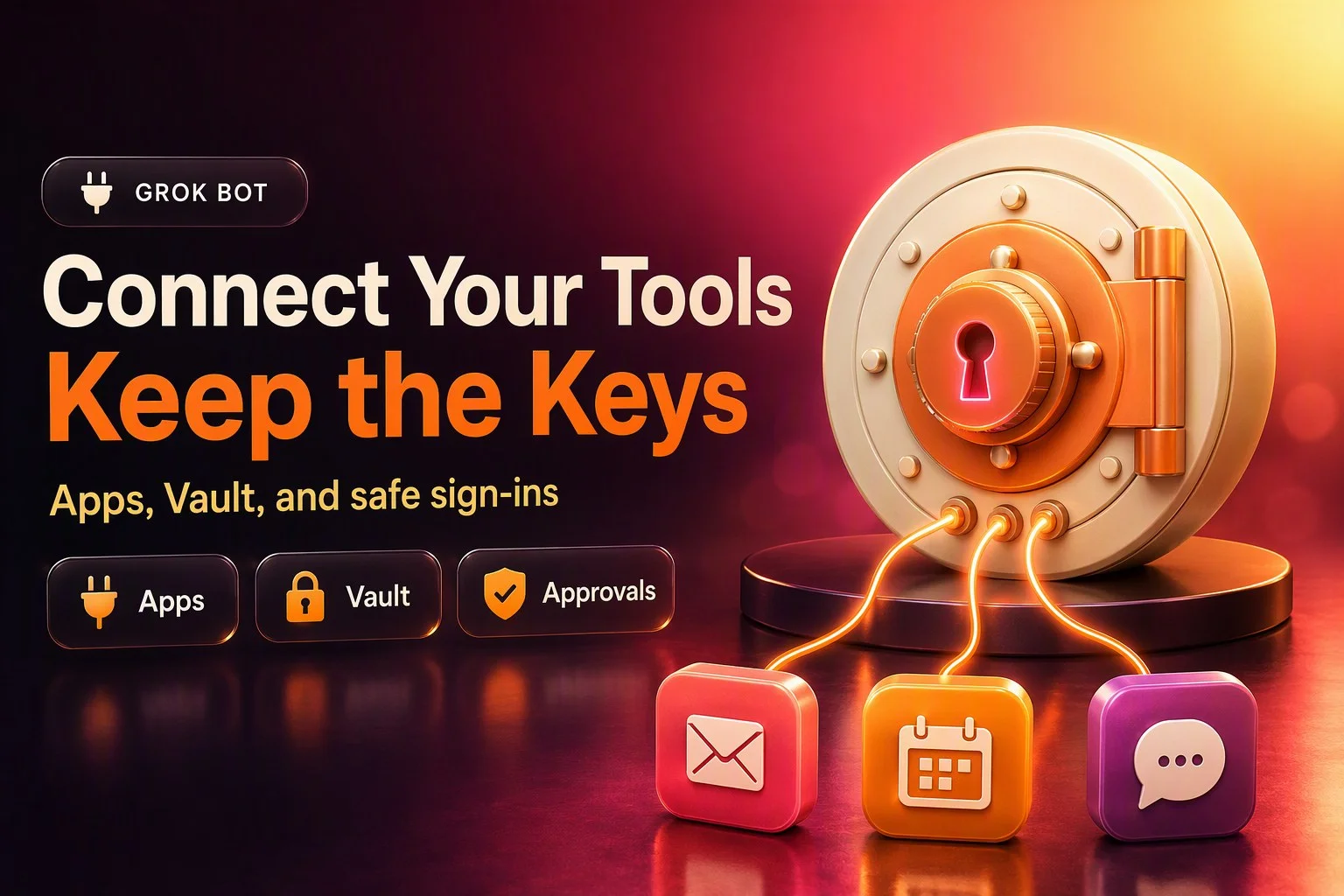
An AI teammate is only useful once it can reach the tools where work happens. Your inbox, calendar, spreadsheets, Slack, CRM, vendor portals. The risk is not the AI itself. It is sloppy access: passwords pasted into chat, API keys sitting in files, every app connected just in case, a company card saved with no thought about approvals.
Grok Bot gives you specific mechanisms for each kind of access. Connected apps for services with integrations. Vault for logins and payment cards. Secure Forms and secret cards for API keys. 1Password integration when you already run it. Take over for SSO, passkeys, CAPTCHA, and bank verification. The Bot's own email address for sign-ups and receipts. Auto Review rules to gate specific actions.
This post is the operator's access plan. What to connect, through which mechanism, with what boundary, and how to take it back.
How Access Works in Grok Bot
All of your Bots share one cloud computer. Browser sessions, files, command-line credentials. The computer is assigned to your user account, not to a Bot. Connected apps are account-wide. Vault items are account-wide. Separate Bots are not a security boundary.
The practical implication: plan access per account, not per Bot. Do not place a credential on the computer that another Bot should not use. Between users, isolation is strict. Each user gets a dedicated, hardware-isolated computer. But within your account, every Bot can use every session, every file, every saved login.
When a teammate shares a Bot with you, that Bot uses the owner's apps and secrets for everyone. In your own chat it can also use your apps, but it asks first. A connected account always acts as the person the Bot is answering.
The Access Inventory
Before connecting anything, list each tool. Which account: personal versus business, owner versus scoped or service account where supported. What the Bot needs to do there: read, draft, send, pay. Which mechanism fits.
Picture a three-person bookkeeping firm. The owner runs Grok Bot and wants a Bot to handle client invoices, track payments, and answer questions from the shared Slack. The inventory might look like this:
- Gmail: business account, read and draft client emails, send only after approval. Connected app.
- Google Calendar: business account, read schedule and create placeholder blocks. Connected app.
- Google Sheets: business account, read the client list and reference sheets shared as Viewer to the connected account. The payment tracker must be editable by the connected account so the Bot can update payment status. Connected app.
- Slack: business workspace, post updates in the internal channel as the owner. Connected app.
- Accounting portal: no app in Connect apps, read-only browser access with a saved login. Vault.
- Payment processor: API key for payment lookups. Secure secret card.
- Company credit card: saved for software subscriptions the Bot renews, with awareness that it will fill at checkout without per-use approval. Vault, with a hint like "Use for software renewals." Or use Link one-time cards that require approval each time.
- The Bot's own email address: claimed for service sign-ups and invoice receipts. Built-in.
- Bank portal: requires device approval and CAPTCHA. Take over for those steps, then the session persists.
Now imagine a home services owner who books jobs from Gmail and a shared Google Sheet and orders parts from a supplier portal. The inventory:
- Gmail: business account, read booking requests and draft replies. Connected app.
- Google Sheets: business account, read the job schedule and update job status. The schedule must be editable by the connected account. Connected app.
- Supplier portal: no app in Connect apps, place orders through the browser with a saved login. Vault.
- Company credit card: saved with a hint "Use for parts orders." Or use Link one-time cards with approval for every purchase. Vault or Link.
- The Bot's own email address: claimed for order confirmations and shipping notifications. Built-in.
If a business runs GoHighLevel or Sumo AI CRM, an AI-first CRM positioned as the best GoHighLevel alternative, and the CRM has no app in Connect apps, the Bot can work through the browser with a saved Vault login.
The decision rules:
- Use a connected app when one exists. More reliable than clicking through a website.
- Use the browser with a Vault login when no app is available.
- Use a secure secret card for API keys. Never paste them into chat or files.
- Use Take over for SSO, passkeys, CAPTCHA, bank verification, or any step requiring a human. Complete only that step.
- Use the Bot's own email for sign-ups and receipts.
- Use 1Password if you already run it and want approval per login.

Connected Apps
Connected apps give a Bot a structured way to work with services like Gmail, Notion, Slack. More reliable than clicking through a website when one exists. Use the browser for services without an app or for visual workflows an app does not expose.
To connect an app, open Connect apps from the sidebar. On mobile, tap your avatar at the top left, then Connect apps. Browse or search, add the app, authorize in the browser. If sign-in does not finish, choose Reconnect or Reopen. Confirm under Installed.
Added means installed, not signed in. If the app shows Needs auth or Disconnected, choose Authenticate. You can ask a Bot to add an app by name. It searches the catalog, installs, and shows a Connect card. A Bot can also add an MCP server not in the catalog by URL or by a command on its computer. A command-started server is available to your other Bots too. Servers on a private network or with a private certificate authority ask for approval first.
Apps are account-wide. Every Bot you run can use them. Type @ in chat to attach an app to a task. Grok Bot's guide to connecting apps covers the full catalog and troubleshooting.
Removing an app removes everything it added and signs you out. Apps your team requires cannot be removed. On a Cursor team, a blocked app shows Disabled by team admin. Blocking an app does not block that service's website. Closing that path takes Network Controls, which is Enterprise only.
Before You Click Authorize
Before you connect an app, run through this checklist:
- Which account will you authorize? Personal or business? Owner or scoped service account?
- What can that account already do in the service? The app inherits those permissions.
- Which Bots will be able to use this app? Apps are account-wide, so every Bot you run will have access.
- What Ask first rules should you add before connecting? For example, ask first before sending any external email, or ask first before deleting rows.
OAuth Tokens Stay Off the Computer
App logins stay off the computer. OAuth tokens are held on Cursor's connector backend. The Bot invokes tools without receiving the tokens. This is a meaningful boundary. A credential typed into a file or pasted into chat lives on the shared computer where every Bot can see it. A connected app does not.
An App Can Do Only What That Account Can Already Do
A connected app uses the account you authorize. It can do only what that account can already do. It cannot raise access or change sharing. The account you authorize is the boundary. Pick it deliberately.
Gmail: search, read, draft and send, apply labels on the connected mailbox. One mailbox at a time. If a Bot should not use that mailbox, disconnect Gmail. Some apps, like Notion, can connect a second account.
Google Calendar: read calendars you can see, create and update events, check free time, respond to invitations on calendars you can edit. Cannot change Meet settings. Cannot add a Zoom link.
Google Sheets: read and edit cells in sheets the account can edit. Viewer stays view-only. Finding and opening files uses the Google Drive app.
Slack: posts as the Slack user you connected, not a separate bot. Only in channels that user can post in. To work in another workspace, connect that workspace. This is separate from Slack routine triggers.
The least-privilege lesson: every Bot on your account can use that mailbox, so the sending boundary comes from Auto Review rules and explicit request boundaries. Where a service does not support scoped accounts, connect the business account you would trust a careful assistant with, and gate actions with Ask first rules.
Google Workspace Admin Approval
Grok Bot signs in to Google as Grok. If you use a company Google Workspace account, you may see Your admin needs to review Grok. Your IT admin approves in the Google Admin console: Security, Access and data control, API controls, App access control, Manage third-party app access, add Grok, set Trusted. Access blocked means Google refused the sign-in. Changing browsers does not clear it. This is separate from Cursor's Disabled by team admin.

Vault for Logins, Cards, and Contact Info
Keep passwords, cards, and API keys out of chat and ordinary files. Vault holds Logins, Cards, and Contact info. Open it in Settings, Vault, on desktop or phone. Requires Grok Bot version 0.75.2 or later.
A Bot never sees a saved password, card number, or security code. It can see contact info and which logins you saved. Values are filled into the page without the Bot seeing them. Vault and secure sign-in documentation covers import, hints, and sign-in order.
Vault covers your whole account. Every Bot can use every item. You cannot limit an item to one Bot. Vault is not supported on shared Bots. Use Secrets instead.
What Belongs Where
What belongs in Vault: logins for websites the Bot will visit regularly, payment cards you are comfortable having fill at checkout without per-use approval, contact information the Bot can reference.
What belongs in a secure secret card: API keys, tokens, credentials that should never appear in chat or files, secrets you want write-only storage for.
What should never be saved: a card you want to approve every time. Use one-chat entry or Link one-time cards with approval instead.
Hints and Import
Add a hint to a login or card. For example, Use for work purchases. The Bot follows the hint when choosing which card to use. You can import from a CSV exported by 1Password, Chrome, Edge, Safari, Apple Passwords, Firefox, Bitwarden, or LastPass. The file is read locally and never uploaded. It must be under 5 MB. Duplicates are skipped. Rows with a missing password or a non-https site are not imported. The exported CSV holds passwords unencrypted. Delete it after import.
What Only You Can Change
Removing a login or card means the Bot can no longer use it. A Bot can change contact info, nicknames, and hints on request. Passwords, usernames, websites, and card numbers change only in Settings, Vault.
Sign-In Order
When a Bot needs to sign in, it tries Vault first, then a connected password manager such as 1Password, then asks you with a Secure Form. One-time email codes: the Bot can read from connected Gmail or Outlook, or from its own inbox.
If you let the Bot choose the password for a new account, Vault generates and saves it. The Bot never sees it.
Secure Forms and Secret Cards
When a login is not in Vault or 1Password, the Bot sends a Secure Form. The form names the site it fills. Never shown to your Bot. Filled directly to the site. A checkbox lets you securely save to the Bot's vault. Unchecked means the value is used only in that chat and expires on its own.
For API keys and other secrets, use a secure secret card. The value is masked. Choose Save securely. The secret is not written into chat or shown to the Bot. On a shared Bot, use Secrets. You provide an environment variable name and a description visible to the Bot. The value is not. The secret is used in every teammate's chat. Team Secrets for setup scripts are stored by the admin on the Enterprise dashboard.
Never paste a password, one-time code, or API key into ordinary chat, a Shell command, or a file on the computer. Do not type secrets into a Teach a task demonstration. Saved values are write-only. You cannot read them back. Choose Replace to change one. Recover, Reset, or computer updates remove installed apps and packages, so a secret typed into a file, shell profile, or tool can disappear. Vault, secure cards, and Secrets are separate from files on the computer, which is why they do not disappear with installed tools.
1Password Integration
If you already run 1Password, Bots can sign in with logins from your 1Password account. You approve each login in 1Password, and 1Password fills it. Bots never see the values. The integration is rolling out gradually. It works with personal and Family accounts. Requires 1Password version 8.12.42 or later.
To connect, open Connect apps, find 1Password under Password Managers, choose Connect 1Password, and approve in the browser. When a login is not in Vault, the Bot sends a card naming the website. Choose Review in 1Password, select the exact logins to share, and 1Password fills it. The shared login stays available in later chats.
1Password does not fill payment cards. It still needs you for passkey, SSO, and CAPTCHA. It offers logins only from your Personal vault, or Private vault on Family accounts, not shared vaults.
Take Over for Sensitive Steps
A site can require a step the Bot cannot complete. SSO, passkey, CAPTCHA it could not pass, approval on another device, QR code, bank card verification, a site explicitly requiring a human. The Bot hands you the computer. Choose Take over or Take control. Complete only that step. Choose I'm done. Tell the Bot to continue.
The signed-in session persists after you choose I'm done and is shared across your Bots. If the Bot should no longer have access to that site, sign out later when the work is done. Hardware security keys can be used by the browser when the setting is on. Each use asks for approval. Not yet available on Linux.
Money and Payment Cards
A card saved in Vault fills at checkout without asking each time. There is no setting that requires approval per use. The operator rule: do not save a card unless unattended purchases are acceptable. Otherwise, leave the save checkbox unchecked for one-chat use, or remove the card after the task.
Payment accounts like Link or X Money offer a different model. With Link, the Bot asks you to approve a one-time card per purchase. The approval card shows the merchant, items, and total. Choose Pay, Pay another way, or Deny. Nothing is charged if you decline or the request expires.
Give Your Bots Their Own Email Address
Claim one email address for your Bots at an address at mail.grokbot.com. You cannot rename or delete it. It is never reissued. All your Bots can use it in your own chats and routines. Not in Slack threads or others' chats. Shared Bots do not have one.
Uses: sign up for services with the Bot's own address and pick up the verification code with your approval. Collect receipts, newsletters, and reports, then summarize. Draft email and replies. Forward. Run a routine when email arrives, optionally only from specific senders.
To claim the address, ask a Bot. It shows an approval card. Nothing is claimed until you approve. On Cursor teams, agent email is off by default. The admin turns on Agent Email.
How Mail Works
Mail from anyone can arrive. Messages that fail spam or virus scans are kept without body or attachments and never start a routine. There is no inbox view. Ask the Bot to check. New mail does not wake a Bot on its own. Set a routine watching for senders or domains. For example, messages from anyone at example.com. By default, only senders passing standard email authentication trigger routines. You cannot filter by subject.
Sending: an in-chat request goes out once Auto Review allows it. An approval card appears if needed. Email from a routine or a turn you did not start waits as a draft until you press Send. There is no unattended sending option. A forward or attachment Auto Review cannot read always waits.
Safety: the Bot treats email from other people as information, not instructions. Instructions inside an email never count as your permission.
Event-Triggered Routines and Access
Routines can start from events outside your chat. A Slack message, a GitHub pull request, a Linear issue update, a Sentry alert, a PagerDuty incident, an email to the Bot's own address, or a webhook. These triggers are configured through your Cursor account integrations and are separate from the Slack or GitHub apps you connect for the Bot to use. Each may need its own connection.
Define a narrow matching rule for each trigger. Avoid rules like "every new message" that would start a routine for every event. For email triggers, you can match specific senders or domains. For example, only messages from a specific vendor or only messages from anyone at a partner domain. By default, only senders passing standard email authentication will trigger a routine.
When a routine sends email from the Bot's own address, that email waits as a draft until you press Send. There is no unattended sending option. Background approval cards raised by a routine expire after 30 minutes. If a routine needs approval and no one is watching, the card will expire and the action will not complete. Plan routines that need approval for times when someone is available to respond.
Picture a routine that starts when a new PagerDuty incident arrives. When it runs, the routine reads the incident details, checks the payment processor API for recent failures, drafts a summary with recommended next steps, and posts it in a Slack channel. The routine uses the Slack app you connected to post, the payment processor API key saved as a secure secret, and raises an approval card before posting. If no one approves within 30 minutes, the post does not go out.
Auto Review Rules for Connected Tools
Auto Review checks each action before it runs. Commands, connected app calls, computer use. Most run on their own. Some get an approval card showing the operation and inputs. Ask first rules always get a card. Text from an email or web page does not count as your request.
Card options: Allow once, Always allow, or Deny. Always allow saves an Allow rule to Custom Rules. Custom Rules describe one action in plain words. Choose Allow automatically or Ask first. Ask first wins when both an Allow rule and an Ask first rule match. You can save up to 20 Allow rules and 20 Ask first rules. Each rule can be up to 1,000 characters.
Write narrow rules tied to the tools you connected and the actions you trust. Here are examples written as the operator would type them:
- Ask first before sending any email to an address outside our domain.
- Ask first before making any purchase or entering payment information.
- Ask first before deleting any rows in the payment tracker sheet.
- Ask first before posting in any Slack channel except the internal operations channel.
- Allow automatically reading any file in the shared reports folder in Google Drive.
- Allow automatically reading calendar events and checking free time.
- Allow automatically drafting email replies without sending them.
- Ask first before creating or changing any calendar event.
- Ask first before changing any permissions or sharing settings.
- Ask first before accepting any legal terms or agreements.
- Allow automatically reading the client list sheet but ask first before editing any client contact information.
- Ask first before running any command that includes the word delete or remove.
Avoid broad rules like "allow everything in the browser." Auto Review is model-based. It should complement least privilege, not replace it. For more on how approval gates for AI teammates work in practice, see our guide to jobs and routines.
Cards raised in the background expire after 30 minutes. Cards raised in chat wait. Set explicit boundaries in your requests for sending messages, publishing, purchases, deleting or overwriting data, changing permissions, production changes, and accepting legal terms.
Least Privilege Checklist
- Connect only needed tools.
- Use scoped service accounts where supported.
- Start with read-only and drafts.
- Keep sending, publishing, purchasing, deletion, and production changes behind approval.
- Review installed connectors and routines regularly.
- Pause a routine when the source changes.
- Preserve source links and action logs.
Shared Bots and Team Settings
A shared Bot uses the apps and secrets its owner added, for everyone. In your own chat it can also use your apps but asks first. Allow once, Always allow, or Skip. In Slack threads and group chats it uses only its owner's apps and asks before using yours. A connected account always acts as the person the Bot is answering. Clear connector preferences under Settings, General, Shared Bots.
On a shared Bot, use Secrets instead of Vault. Only add API keys and credentials you are happy for everyone to use. Grok Bot inherits your team's Cursor connector policy. Set it on the dashboard Plugins and MCPs page. The MCP allowlist is Enterprise only. A permitted connector is available to every Bot a member runs. Pushing connectors to members is not available. Network Controls are Enterprise only. Connector policy and network policy are separate layers. Blocking an app does not block that service's website.
Local Computer Access
Local computer access is separate. The default setting is Ask every time. Other options: Always allow or Never allow. Use Never allow unless a specific reason exists. A Bot working on its cloud computer does not need access to your local machine for most tasks.
Taking Access Back
Removing access is as important as granting it. The documented removal checklist:
- Pause or delete routines that use the tool.
- Sign out of websites on the Bot's computer.
- Uninstall connectors and revoke authorization in the source service.
- Remove sensitive files from the workspace folder.
- Hide or delete Bots you no longer use.
Deleting a Bot does not remove shared-computer files or sessions. You must sign out and remove files manually.
Quarterly Access Review Checklist
Run a quarterly access review. Work through this checklist:
- Connected apps: open Connect apps and review every installed app. Does each Bot still need it? Remove any that are no longer in use.
- Vault items: open Settings, Vault, and review saved logins and cards. Remove credentials for services you no longer use or accounts that have been closed.
- Saved cards: check which payment cards are saved. Remove cards that should require approval or that belong to closed accounts.
- Routines: review every active routine. Does the trigger still make sense? Does the routine still need access to the tools it uses? Pause or delete routines that are no longer needed.
- Signed-in sessions: review the sites you or your Bots signed in to on the computer, including sessions left after Take over. Sign out of any that should no longer have access.
- MCP servers: review installed MCP servers. Remove servers that are no longer needed or that were added for a one-time task.
- Auto Review rules: review your Custom Rules. Remove rules that no longer apply or that were written for a task that has ended.
- Shared Bot access: if you own a shared Bot, review who has access and whether they still need it.
Common Mistakes and Fixes
Pasting API Keys Into Chat
Never paste an API key into chat. Use a secure secret card. If you already pasted one, revoke the key in the source service immediately. Generate a new key and save it with a secure card.
Connecting Every App Just in Case
Apps are account-wide. Every Bot can use them. Connect only what you need now. You can always add more later. If a Bot should not use Gmail, disconnect Gmail before asking that Bot to do work.
Saving a Company Card Without Thinking About Approvals
A saved card fills at checkout without asking. If unattended purchases are not acceptable, either accept that behavior and add a hint like "Use for software renewals," or use Link one-time cards that require approval each time. Do not save a card expecting per-use approval.
Forgetting That All Your Bots Share One Computer
Browser sessions, files, and command-line credentials are shared. Do not place a credential on the computer if another Bot should not use it. Use Vault or secure cards instead.
Not Signing Out When Access Should End
When you complete a sensitive step with Take over, the session persists after you choose I'm done. It is shared across your Bots. When the Bot should no longer have access to that site, sign out of it on the computer.
Assuming a Separate Bot Is a Security Boundary
It is not. Separate Bots are work surfaces, not isolation. Plan access per account, not per Bot.
Approving a Card You Cannot Read
If an approval card appears and you cannot understand what it is asking for, choose Deny. Ask the Bot to explain the action in plain language or to produce a draft you can review first. Do not approve actions you cannot verify.
Letting an Incoming Email Give Instructions
Email from other people is information, not permission. If an email that reaches the Bot asks for an action, that request does not count as your instruction. The Bot should treat the email as context, not as a command. Make your own request explicit.
A Two-Week Connection Plan
Days one to three: list every tool the Bot will touch. Decide which account and which mechanism. Write down what the Bot needs to do in each tool: read, draft, send, pay. Do not connect anything yet.
Days four to six: connect read-only tools first. Connect the account to Gmail, ask only for summaries and searches in chat, and add an Ask first rule for sending email before you connect. Connect Google Sheets with the reference sheets the Bot should not change shared as Viewer to that account. Connect the calendar, ask only for reads, and add an Ask first rule for creating or changing events. Connect the CRM through the browser with a saved login if there is no app in Connect apps. Ask the Bot to summarize, search, and report. Verify it can read what it needs and nothing more.
Days seven to ten: add drafting. Ask the Bot to draft email replies and leave them in drafts. Ask for drafts of Slack messages before posting. Ask for drafts of calendar event details before creating. Let the Bot prepare work for your review. Check that drafts stay drafts and nothing goes out without your approval.
Days eleven to fourteen: enable narrow approved actions. Add an Ask first rule for sending email to addresses outside your domain, then allow internal sends. Add an Ask first rule for posting in any Slack channel except one internal channel. Add an Ask first rule for deleting rows in the payment tracker, then allow the Bot to update payment status. Either save a card with a hint like "Use for software renewals" and accept that it will fill without per-use approval, or use Link one-time cards with approval each time. Test each action. Confirm the approval card appears when it should.
After two weeks, review what the Bot used. Remove anything it did not touch. Write Auto Review rules for the actions you want to allow automatically. Keep high-risk actions behind Ask first.
How SumoGrowth Labs Helps
SumoGrowth Labs is an AI implementation and consulting agency. We handle the setup work so you do not have to figure it out alone. Access inventories: we map your tools, accounts, and required actions before connecting anything. Account and connector setup: we configure service accounts, connect apps, and set up Vault items with least privilege. Vault and secret hygiene: we import credentials, set hints, and ensure API keys never touch chat or files. Auto Review rule design: we write narrow rules that allow safe automation and gate risky actions. Offboarding checklists: we document how to remove access when a Bot's job ends or a team member leaves.
Plans change. Check the current plans page for Grok Bot pricing and features.
The real implementation work is access. Connect the right tools, through the right mechanisms, with the right boundaries. Review quarterly. Take access back when the work is done. That is how you connect Grok Bot to your business tools without handing over the keys.
by Darius Gaynor