Muse Artifacts for Operators: Deliverables, Library, and Sharing Rules
Chat answers disappear. Artifacts are the files you can open next week, hand to a teammate, or attach to a proposal.
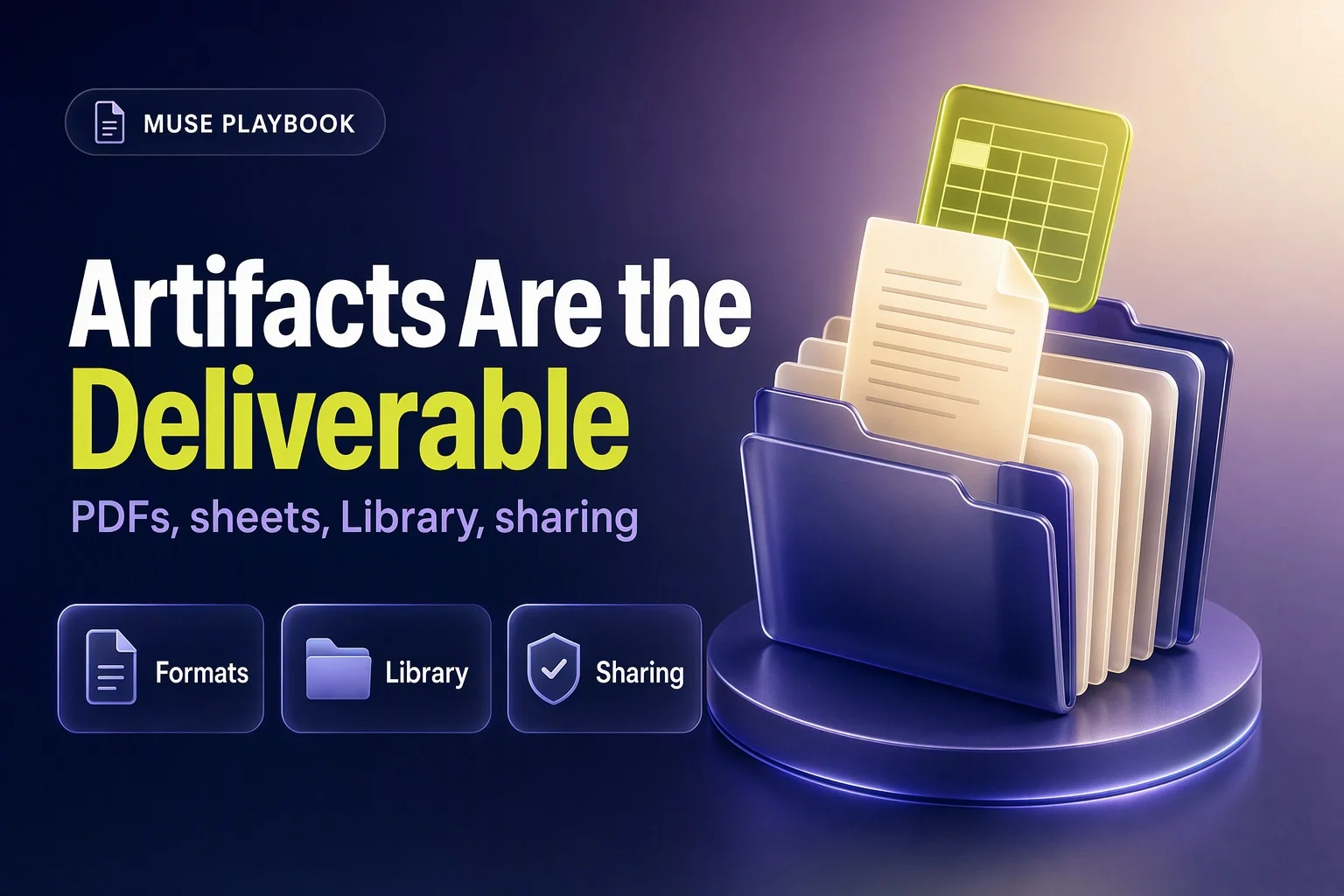
Chat Answers Disappear. Artifacts Are the Deliverable Layer.
Chat answers scroll away. You ask Muse a question, you get a reply, and two days later you are scrolling through the conversation trying to find that paragraph about pricing or the bullet list of next steps. That is not operator work. Operator work is a PDF proposal you can attach to an email, an XLSX scorecard you can open every Monday, a DOCX standard operating procedure you can hand to a new hire, a PNG draft creative you can send to a client for approval, or a single-page dashboard you can bookmark and check before a call.
In Muse, those files are called Artifacts. Muse can read, create, edit, and summarize Artifacts. They live in your Library. They are editable. They are not shared outside Muse unless you approve sharing. That is the deliverable layer.
This post teaches operators how to specify formats, run a create-edit-reuse loop, keep a clean Library, set permissions for Artifacts, add attribution when something leaves the workspace, and pick the right artifact for common ops jobs like standard operating procedures, client proposals, scorecards, and handoffs. It is not a weekly schedule guide and it is not a connector guide. If you still need to set up goals, connectors, and the approval basics, start with the Muse for Small Business playbook first. This post assumes you already have Muse running and you want to treat Artifacts as the real output of your AI work.
What Counts as an Artifact
Artifacts are the documents, images, code files, spreadsheets, and other files that Muse creates or that you upload. Muse can read them, edit them, and reference them in later requests without you having to re-upload or re-explain. They are stored in your workspace and accessible through the Library tab.
Supported artifact types include PDF, DOCX, plain text, and Markdown for documents. XLSX and CSV for spreadsheets. PNG, JPEG, GIF, and WebP for images. Code and source files in most languages. Interactive single-page tools and visualizations that open in a browser. Podcasts are also confirmed as a supported artifact type that Muse can create and store in your Library.
Do not ask for formats that are not on that list. If you need a PowerPoint slide deck, ask for a PDF or a DOCX outline instead. Stick to formats Meta documents for Artifacts and Skills.
Skills vs Artifacts
Skills are the built-in capabilities that Meta ships inside Muse. They include creating documents, generating podcasts, generating images, compiling research, drafting documents, creating dashboards, and browsing the web. Muse picks which skills a request needs. You do not build custom skills or shop for skills in a marketplace. Skills are already part of Muse.
Artifacts are the files those skills produce. A document creation skill produces a PDF or DOCX artifact. An image generation skill produces a PNG or JPEG artifact. A podcast skill produces an audio file artifact. The skill is the capability. The artifact is the file you can download, share, or edit. For more detail on how Muse picks and uses skills, see how Muse works with skills.
Why Operators Should Demand a File, Not a Chat Reply
Chat replies are useful for quick answers and exploratory questions. But finished operator work needs to be portable, reusable, and auditable. A file can be opened next week. A file can be handed to a teammate who was not in the original conversation. A file can be attached to a client proposal or uploaded to a project folder. A file has a name and a format that everyone recognizes.
Picture a home services company that asks Muse to draft a proposal for a new commercial cleaning contract. If Muse replies with three paragraphs of text in the chat, the operator has to copy that text into a Word document, format it, add a header, save it, and attach it to an email. If Muse creates a PDF artifact named Commercial Cleaning Proposal - ABC Office Park.pdf, the operator opens the file, checks the content, adds the attribution line if needed, and attaches it directly. The second path is faster and the file is already formatted.
Files also support versioning. You can ask Muse to edit the same named file instead of creating a new copy every time. That means your scorecard or your standard operating procedure or your weekly dashboard is always the same file, updated in place, with a clear history of what changed. Chat replies do not version. They just pile up in the scroll.
Finally, files create an audit trail. If a client asks where a number came from, you can open the XLSX scorecard, see the source connector data, and trace the calculation. If a teammate asks what the onboarding process is, you hand them the DOCX standard operating procedure. If you need to check what you sent to a prospect last month, you search your Library for the PDF proposal. Chat replies do not support that kind of retrieval.
The Create, Upload, Edit, Reuse Loop
The basic workflow for Artifacts is create, upload, edit, and reuse. You can start by uploading an existing file and asking Muse questions about it. You can ask Muse to create a new file from scratch with a specific format. You can edit a file in place by asking for changes. You can reference previous files in later requests without re-uploading them. You can combine steps by asking Muse to read one file and then create a summary in another format.
Upload and Ask Questions
Upload a PDF contract, an XLSX export from your CRM, or a DOCX process document. Ask Muse to summarize it, pull out action items, compare it to another file, or answer specific questions. The file goes into System Files under your Library tab. Muse can reference it in future requests without you uploading it again.
Create with a Specific Format
Describe what you need and specify the format. "Create a PDF proposal for a six-month social media management retainer for a dental practice. Include scope, deliverables, pricing, and next steps. Name the file Social Media Proposal - Bright Smile Dental.pdf." Muse creates the file, shares it in the conversation, and saves it to your Library. You can download it, open it, and check the content before you send it.
Edit in Place
Ask Muse to change the file without creating a new copy. "Add a row for March to the scorecard. Update the revenue target to fifteen thousand." Or "Rewrite the intro paragraph in the proposal to focus on patient engagement instead of follower growth." Muse applies the changes and confirms what it changed. The file name stays the same. The updated version replaces the old version in your Library.
Reference Previous Files
Once a file is in your workspace, you can reference it by name without re-uploading. "Read the onboarding checklist DOCX and create a one-page PDF summary for new hires." Or "Compare the October scorecard XLSX to the November scorecard XLSX and tell me which metrics dropped." Muse pulls the files from your Library and completes the request.
Combine Read and Create
You can ask Muse to read one file and create another in a single request. "Read the client intake form PDF and create an XLSX project tracker with columns for task, owner, due date, and status. Name it Project Tracker - Johnson Remodel.xlsx." Muse reads the intake form, extracts the relevant details, and creates the spreadsheet.
For more on working with files and adding attribution when you share artifacts, see Meta's guide to getting started with Muse.

Naming and Format Rules Operators Should Write into Every Brief
If you do not specify a format, Muse will pick one. If you do not name the file, Muse will generate a name. If you do not say to update the existing file, Muse may create a new copy. Operators who want clean, reusable Artifacts need to write naming and format rules into every brief.
Always Name the Target File
Include the full filename with extension in your request. "Create a PDF named Client Proposal - ABC Bakery.pdf" or "Update the existing file named Weekly Scorecard.xlsx." The name should be descriptive enough that you can find it in your Library a month from now without opening every file.
Always Name the Format
Say PDF or DOCX, not just document. Say XLSX or CSV, not just spreadsheet. Say PNG or JPEG, not just image. The format determines how the file opens, how it can be edited, and whether it is ready to share with a client or upload to another tool.
Always Say Update the Existing File, Do Not Create a New Copy
If you want to edit a file in place, say so explicitly. "Update the existing file named Weekly Scorecard.xlsx. Add a row for March. Do not create a new copy." Otherwise you may end up with Weekly Scorecard.xlsx, Weekly Scorecard (1).xlsx, and Weekly Scorecard (2).xlsx in your Library, and you will not know which one is current.
Specify Audience and Length
Tell Muse who will read the file and how long it should be. "Create a one-page PDF summary for a client who does not have time to read a full report." Or "Create a two-page DOCX standard operating procedure for a new hire who has never used our CRM." Audience and length constraints keep the artifact focused and usable.
Mark Draft Boundaries
If the artifact is a draft that needs human review before it goes out, say so. "Create a draft PDF proposal. Mark it as draft. I will review and finalize before sending." That reminds you to check the content, add any missing details, and remove the draft watermark or label before the file leaves your workspace.
Example Brief for a Client Proposal PDF
Here is a full hypothetical brief for a client proposal. "Create a PDF proposal for a three-month email marketing program for a two-location bakery. Include scope, deliverables, timeline, pricing, and next steps. The audience is the bakery owner who is not technical. Keep it to two pages. Name the file Email Marketing Proposal - Sweet Spot Bakery.pdf. Mark it as draft. I will review before sending."
That brief specifies format, filename, audience, length, boundary, and content. Muse has enough context to create a usable artifact. You open the PDF, check the pricing and scope, adjust anything that does not match your standard terms, and then you are ready to share it.
Example Brief for a Weekly Scorecard XLSX
Here is a full hypothetical brief for a scorecard spreadsheet. "Create an XLSX scorecard named Weekly Scorecard.xlsx. Include columns for metric, target, actual, variance, and status. Add rows for revenue, new leads, appointments booked, close rate, and outstanding invoices. Pull actual numbers from the CRM connector data for the current week. I will update this file every Monday, so make sure the structure is easy to edit."
That brief specifies format, filename, structure, data source, and the intended reuse pattern. Muse creates the spreadsheet. You open it, confirm the numbers match your CRM, and save it. Next Monday you ask Muse to update the same file with the new week's data. The filename stays the same. The structure stays the same. You just get fresh numbers.
Library, System Files, and Hygiene
The Library tab is where Artifacts live. It holds documents, images, videos, podcasts, and other files that Muse creates. System Files, which you can find under Library, holds files you upload or create. You can ask Muse where a file is if you are not sure. You can delete files from Library anytime. You can also download all your Muse data or reset your workspace, but reset is permanent and wipes everything.
How Library Is Organized
When you open the Library tab, you see a list of Artifacts. Each entry shows the filename, the type, and the date it was created or last modified. You can open a file to view or edit it. You can delete a file if you no longer need it. You can download a file to save a copy outside Muse.
System Files is a section under Library that holds uploaded files and files Muse creates during tasks. If you upload a CSV export from your CRM or a PDF contract from a client, it goes into System Files. If Muse creates a working file as part of a larger task, it may also appear in System Files. The distinction is not critical for most operators. The important point is that everything Muse reads or creates is stored somewhere in your workspace, and you can find it through Library.
Ask Muse Where a File Is
If you cannot find a file, ask Muse. "Where is the file named Client Proposal - ABC Bakery.pdf?" or "Show me all the XLSX files in my Library." Muse can search your workspace and tell you where the file is or confirm that it does not exist.
Delete Files You No Longer Need
Old drafts, test files, and outdated scorecards pile up. Delete them. Open Library, find the file, and delete it. This keeps your workspace clean and makes it easier to find the files you actually use. Deleting a file does not delete the chat conversation where you created it, but the file itself is gone.
Download Your Muse Data and Reset Warnings
You can download all your Muse data from Settings under Data controls. This gives you a backup of your Artifacts and chat history. You can also reset your workspace from the same menu, but reset is permanent. It wipes all your Artifacts, chat history, memory, and settings. Do not reset unless you are sure you want to start over. There is no undo.
Monthly Cleanup Checklist
Once a month, run through this checklist. Open Library and review the list of Artifacts. Delete any drafts or test files you no longer need. Download any critical files you want to back up outside Muse. Check that your current scorecards, standard operating procedures, and client-facing templates are named clearly and stored in Library. Ask Muse if there are any duplicate files or files with generic names like Document (1).pdf. Rename or delete duplicates. This takes ten minutes and keeps your workspace usable.
Sharing, Attribution, and Permissions for Artifacts
Muse will not share Artifacts externally unless you turn on sharing yourself or approve when Muse asks. This is a critical control. Your workspace is private. Files do not leave unless you say so. When you do share a file, you can ask Muse to add a note that the content was generated by your AI agent. That is called attribution, and it is a good practice for any artifact that goes to a client, a partner, or a public channel.
Nothing Leaves Without Your Approval
By default, Artifacts stay in your workspace. If you ask Muse to email a proposal PDF to a client, Muse will ask for approval before sending. You can allow once, allow for this task, always allow, or deny. Always allow is a risk. It means Muse can send files without asking again. Most operators should stick with allow once or allow for this task. That way you review what is going out every time.
Ask Muse to Add Attribution
When you share an artifact, ask Muse to add a line that says the content was generated by your AI agent. "Send the proposal PDF to the client. Add a note at the bottom that this document was prepared with assistance from my AI agent." Or "Export the scorecard XLSX and include a footer that says data compiled by Muse." Attribution is transparent. It sets expectations. It avoids the awkward moment when a client assumes you hand-typed every word and then finds a formatting quirk that gives away the automation.
Settings for Artifacts and Scheduled Tasks
Go to Settings, then Permissions, then Manage permissions. You will see a section for Artifacts and scheduled tasks. This is where you set approval rules for each scheduled task and for artifacts in general. The options are allow once, allow for this task, allow for this site, always allow, and deny. For Artifacts, the safest default is to require approval for each action. That means every time Muse wants to send a file or share a file externally, it asks you first.
Keep Sharing Behind Per-Action Approval
Do not set always allow for sharing or sending unless you have a very specific, repeatable workflow that you have tested and trust. Most operator work involves some judgment. You want to check the proposal before it goes to the client. You want to confirm the scorecard numbers before you forward the file to your business partner. You want to make sure the standard operating procedure does not include outdated steps before you hand it to a new hire. Per-action approval gives you that checkpoint. Always allow skips the checkpoint. Use it only when you are certain the output is correct every time.

Pick the Right Artifact for the Job
Different operator jobs need different artifact types. A standard operating procedure is not the same as a client proposal. A scorecard is not the same as a one-page dashboard. A draft creative is not the same as an audio briefing. This section walks through common use cases and tells you which artifact to pick, what to put in the brief, and what to check before you use or share the file.
Standard Operating Procedure or Playbook
Use a DOCX or PDF. DOCX if you expect to edit the file frequently or if you want other people to add comments or suggestions. PDF if the process is stable and you want a locked, shareable format that looks the same on every device.
In your brief, specify the process name, the audience, the level of detail, and the format. "Create a DOCX standard operating procedure for onboarding a new client in our social media management service. The audience is a junior account manager who has used our CRM before but has not run a full onboarding. Include steps for intake form, contract signature, access requests, kickoff call, and first content calendar. Name the file SOP - Client Onboarding Social Media.docx."
Before you share or use the file, open it and check that the steps match your actual process. Look for any steps that are outdated or missing. Check that the tool names and screenshots, if any, are current. If you have a compliance requirement or a specific order of operations, confirm that the SOP reflects it. Add the attribution line if the file will be shared outside your immediate team.
Client Proposal or Quote
Use a PDF. A proposal needs to look finished and professional. PDF is the format clients expect. It does not shift layout between devices. It is easy to attach to an email or upload to a client portal.
In your brief, specify the service, the client name, the scope, the pricing structure, the timeline, and the next steps. "Create a PDF proposal for a six-month SEO program for a local law firm. Include scope, deliverables, monthly retainer pricing, timeline, and next steps. The audience is the managing partner who is not technical. Keep it to two pages. Name the file SEO Proposal - Smith and Associates Law.pdf. Mark it as draft."
Before you send the file, open it and check the pricing, the scope, and the deliverables. Make sure the client name and any specifics match the intake conversation. Check that the tone and language match your brand voice. Add the attribution line at the bottom. Remove the draft label. Then attach it to your email or upload it to your proposal tool.
Scorecard or Export for Another Tool
Use an XLSX or CSV. XLSX if you want formulas, formatting, multiple sheets, or charts. CSV if you are exporting data to upload into another tool that expects a simple table.
In your brief, specify the metrics, the time period, the data source, and the structure. "Create an XLSX scorecard named Weekly Scorecard.xlsx. Include columns for metric, target, actual, variance, and status. Add rows for revenue, new leads, appointments booked, close rate, and outstanding invoices. Pull actual numbers from the CRM connector data for the current week."
Before you use the file, open it and spot-check the numbers against your source system. Confirm that the formulas are calculating variance and status correctly. If you plan to update this file every week, make sure the structure is easy to edit and that the column headers are clear. If you are exporting to another tool, open the CSV in a text editor or a spreadsheet app and confirm that the format matches what the other tool expects.
One-Page Dashboard or Tracker
Use an interactive single-page tool or visualization that opens in a browser. This is a web-based artifact that Muse can create and that you can bookmark. It is useful for a live view of a small number of metrics or a simple tracker that you check before a call or a meeting.
In your brief, specify the metrics, the layout, and the update frequency. "Create a one-page dashboard that shows revenue, new leads, and close rate for the current month. Include a bar chart for revenue by week and a status indicator for each metric. Name it Monthly Dashboard. I will ask you to update this file at the start of each month with the new data."
Before you rely on the dashboard, open it and confirm that the data is correct and that the layout is readable. Dashboards do not auto-refresh with live data. When you need updated numbers, ask Muse to update the same artifact by name. "Update Monthly Dashboard with data for December." Muse will pull the new data and refresh the file. The URL stays the same. You just get new numbers.
Draft Creative or Diagram
Use a PNG or JPEG. Image artifacts are useful for draft social media graphics, simple diagrams, flowcharts, or visual concepts that you will hand off to a designer or upload to a content calendar.
In your brief, specify the content, the dimensions, the style, and the purpose. "Create a PNG image for an Instagram post announcing a new service package. Include the headline New Social Media Package, a subhead Grow your audience in 90 days, and our logo. Use a clean, modern style with a light background. Size 1080 by 1080 pixels. Name the file Instagram - New Package Announcement.png."
Before you use or share the image, open it and look at it. Check that the text is readable, the layout is balanced, and the style matches your brand. Check that the dimensions are correct for the platform. If you are handing it off to a designer, include a note that this is a draft concept generated by your AI agent and that the designer should refine it. Do not post an AI-generated image to a client account without a human review.
Short Audio Briefing for a Partner Who Will Not Read a Memo
Use a podcast artifact. Muse can generate audio files. This is useful when you need to brief a business partner, a contractor, or a remote team member who prefers to listen instead of read. It is also useful for creating a verbal summary of a long document or a complex topic.
In your brief, specify the content, the length, the tone, and the audience. "Create a five-minute audio briefing for my business partner summarizing the Q4 performance review. Cover revenue, new client wins, challenges, and priorities for Q1. Use a conversational tone. Name the file Q4 Review Briefing.mp3."
Before you send the audio file, listen to it. Check that the content is accurate, the tone is appropriate, and the length is what you asked for. Check that the file plays correctly and that the audio quality is clear. Add a note when you send it that the briefing was generated by your AI agent. Do not assume your partner will know that without being told.
A Simple Evidence Standard Before You Treat an Artifact as Ready
An artifact is not ready to use or share just because Muse created it. You need to check it. Here is a simple evidence standard that works for most operator use cases.
First, check the sources. If the artifact includes data, claims, or recommendations, ask Muse what sources it used. Open those sources and spot-check a few key facts. If the artifact says revenue was twelve thousand last week, open your CRM or accounting tool and confirm that number. If the artifact cites a policy or a process, open the original document and confirm that the citation is accurate.
Second, spot-check numbers against the source system. Do not trust a number in a scorecard or a proposal just because it is formatted nicely. Open the source system, pull the same metric for the same time period, and compare. If the numbers do not match, ask Muse why. There may be a filter, a date range, or a calculation difference that you need to understand before you use the artifact.
Third, check the account and brand voice. If the artifact is client-facing, read it out loud or have someone else read it. Does it sound like your business? Does it match the tone you use in proposals, emails, and calls? If it sounds generic or off-brand, ask Muse to rewrite it with specific voice guidelines. "Rewrite the intro paragraph to sound more conversational and less formal. Use short sentences and avoid jargon."
Fourth, confirm the format matches the request. If you asked for a PDF, make sure you got a PDF. If you asked for an XLSX with three columns, make sure the file has three columns and not five. If you asked for a PNG at 1080 by 1080 pixels, check the dimensions. Format mismatches are easy to catch and easy to fix, but only if you check.
Fifth, confirm the filename is the one you wanted. If you asked for Client Proposal - ABC Bakery.pdf and you got Document (1).pdf, rename it or ask Muse to recreate it with the correct name. Filenames matter. They are how you find files later. They are how you avoid sending the wrong file to a client.
Sixth, confirm sharing is still off unless you intend to send the file. Open the artifact, check the sharing settings, and make sure Muse has not turned on external sharing without your approval. If you are about to send the file, add the attribution line. If you are not ready to send it, leave sharing off.
Where Artifacts Fit Next to Scheduled Work and Connectors
Scheduled tasks can produce or update Artifacts, but the file is still the deliverable. Connectors supply the context and the data that go into Artifacts, but the connector is not the output. This post is about Artifacts as the deliverable layer. It is not about how to set up a weekly review or how to configure connectors. Those topics are covered in other playbooks.
A scheduled task might update your Weekly Scorecard.xlsx every Monday morning with fresh data from your CRM connector. The task is the automation. The XLSX file is the deliverable. You open the file, review the numbers, and use it in your Monday meeting. The task makes the file current. The file is what you actually look at.
A connector might pull revenue data from your accounting tool or lead data from your CRM. That data goes into a scorecard artifact or a dashboard artifact. The connector is the pipe. The artifact is the report. You do not open the connector and stare at raw data. You open the artifact and see the data formatted, calculated, and ready to use.
If you want to build a recurring weekly review with scheduled tasks, scorecards, dashboards, and memos, that is a separate playbook. It is already covered in another post. This post is about the Artifacts themselves, how to create them, how to manage them, and how to treat them as the real output of your AI work.
Common Mistakes
Operators who are new to Muse Artifacts make predictable mistakes. Here are the most common ones and how to avoid them.
Accepting a Chat Wall of Text Instead of a File
You ask Muse for a proposal or a process document and Muse replies with three paragraphs in the chat. You copy and paste the text into a Word document, format it, save it, and move on. That is the wrong workflow. Ask Muse to create a file. "Create a PDF proposal named Client Proposal - ABC Bakery.pdf." The file is already formatted. You just open it, check it, and use it.
Creating a New Copy Every Time Instead of Updating the Named File
You ask Muse to update your scorecard and Muse creates a new file named Weekly Scorecard (1).xlsx. Now you have two scorecards in your Library and you do not know which one is current. Always say "Update the existing file named Weekly Scorecard.xlsx. Do not create a new copy." That keeps your Library clean and your files current.
Never Opening Library
You create Artifacts in chat and then never look at the Library tab. You do not know what files you have, where they are, or whether they are up to date. Open Library once a week. Review the list of Artifacts. Delete old drafts. Download critical files. Ask Muse where a file is if you cannot find it. Library is not a junk drawer. It is your workspace. Treat it like one.
Sharing Without Attribution
You send a proposal PDF to a client without adding a line that says the document was prepared with assistance from your AI agent. The client assumes you wrote every word. Later the client finds a phrase or a formatting choice that feels off and questions whether you actually did the work. Add attribution. It is transparent. It sets expectations. It avoids awkward conversations.
Always Allow on Sharing and Sending
You set always allow for sharing or sending Artifacts because you do not want to approve every action. Now Muse can send files to clients, partners, or public channels without asking you first. That is a risk. Most operator work needs a human checkpoint. Stick with allow once or allow for this task. You can always change the setting later if you find a workflow that is safe to automate fully.
Uploading Junk into System Files and Never Deleting
You upload test files, old exports, and random PDFs into System Files and never clean them up. Your workspace fills with files you do not need and cannot find. Once a month, open System Files, review the list, and delete anything you do not use. If you are not sure whether you need a file, download it as a backup and then delete it from Muse.
Treating a Podcast or Image as Finished Without a Human Listen or Look
You ask Muse to create a podcast briefing or a draft social media image and you send it without listening or looking. The audio has a factual error or the image has a layout problem that you would have caught in five seconds. Always listen to audio files before you share them. Always look at image files before you post them. AI-generated content is a draft until a human reviews it.
Asking for Formats Muse Docs Do Not List
You ask Muse to create a PowerPoint slide deck. That format is not on Meta's documented Artifacts list. The supported formats include PDF, DOCX, plain text, Markdown, XLSX, CSV, PNG, JPEG, GIF, WebP, code files, interactive single-page tools, and podcasts. Library also lists videos among files Muse creates. If you need a format that is not documented, ask for the closest supported format and convert it yourself or hand it off to a tool that can.
A 14-Day Practice Plan
Here is a simple practice plan to build Artifact habits in two weeks. This is not a full connector rollout or a 30-day business review build. It is a focused practice loop to get comfortable creating, editing, and managing Artifacts.
Days 1 to 3: One PDF Standard Operating Procedure from Existing Notes
Pick a process you already have notes on. Client onboarding, invoice follow-up, content approval, or weekly planning. Ask Muse to create a PDF standard operating procedure from your notes. Specify the filename, the audience, and the level of detail. Open the PDF. Check that the steps are correct. Ask Muse to edit anything that is missing or outdated. Download the file. Put it in your shared drive or your project folder. Hand it to a teammate and ask if it makes sense. That is your first finished Artifact.
Days 4 to 7: One Scorecard Spreadsheet You Edit in Place
Pick three to five metrics you check every week. Revenue, new leads, close rate, outstanding invoices, or whatever matters to your business. Ask Muse to create an XLSX scorecard with columns for metric, target, actual, variance, and status. Name the file Weekly Scorecard.xlsx. Open the file. Spot-check the numbers against your source system. On day 5, ask Muse to update the same file with fresh data. Do not create a new copy. Update the existing file. On day 6, ask Muse to add a row for a new metric. On day 7, open the file and confirm that all the edits are there and the structure is clean. That is your reusable scorecard.
Days 8 to 10: One Client-Facing PDF with Attribution Rule
Pick a real or hypothetical client project. Ask Muse to create a PDF proposal, a project summary, or a performance report. Specify the filename, the audience, the length, and the content. Mark it as draft. Open the PDF. Check the content, the tone, and the formatting. Ask Muse to add a line at the bottom that says this document was prepared with assistance from your AI agent. Remove the draft label. Save the file. That is your first client-ready Artifact with attribution.
Days 11 to 14: Library Cleanup and Permissions Review
Open the Library tab. Review the list of Artifacts. Delete any test files, old drafts, or duplicates. Download any critical files you want to back up. Ask Muse if there are any files with generic names like Document (1).pdf or Scorecard (2).xlsx. Rename or delete them. On day 12, go to Settings, then Permissions, then Manage permissions, then Artifacts and scheduled tasks. Review the approval settings. Make sure sharing and sending are set to allow once or allow for this task, not always allow. On day 13, ask Muse to show you the Activity log. Review the list of actions Muse has taken in the past week. Check that nothing was shared externally without your approval. On day 14, write down your naming and format rules on a sticky note or in a checklist. Always name the file. Always name the format. Always say update the existing file. Keep that checklist next to your keyboard for the next two weeks.
How SumoGrowth Labs Helps
SumoGrowth Labs is an AI implementation and consulting agency. We help small businesses and agencies define deliverable standards, write naming and format rules, set up Library hygiene routines, and build review habits so Muse work becomes files the business can keep. We do not sell software. We set things up, write the briefs, train your team, and hand off a working system. If you want help turning Muse Artifacts into a repeatable operator workflow, that is what we do.
by Darius Gaynor