GoHighLevel Appointment Reminders: Cut No-Shows Without Annoying Clients
Practical operator guide to reducing no-shows in HighLevel using calendar notifications and confirmation workflows without spamming your clients.
Empty chairs cost money. When a client books a consultation, a cleaning, a strategy session, or a treatment and then ghosts, your business or your client's business loses the slot, the prep time, and the opportunity to serve someone else who would have shown up. For agencies running GoHighLevel subaccounts, no-shows are doubly painful because they erode trust with the local business owner who hired you to fill their calendar, not waste their staff's time.
The fix is not to bombard every contact with a wall of text at all hours. The fix is a clean, deliberate reminder and confirmation system that nudges the right person at the right time, respects quiet hours, stops when the appointment is canceled or rescheduled, and gives you visibility into who confirmed and who needs a human follow-up call. HighLevel gives you two layers to build this system: built-in calendar notifications and workflow-based reminders. Used correctly, they cut no-shows without turning your brand into a spammer. Used carelessly, they double-message contacts, fire reminders after cancellations, and create the kind of noise that trains people to ignore your texts.
This guide walks through the mechanics of appointment reminders in HighLevel, the confirmation workflows that let you tag and escalate unconfirmed bookings, the timing and channel choices that keep your cadence respectful, and the common failure modes that trip up even experienced operators. If you run subaccounts for service businesses, med spas, agencies, consultants, or any operation where a missed appointment means lost revenue, this is your playbook.

Two Layers: Calendar Notifications vs Workflow Reminders
HighLevel offers two distinct systems for sending appointment reminders, and understanding when to use each, or both, is the first step toward a no-show strategy that does not backfire.
The first layer is calendar notifications. Every calendar in HighLevel has a Notifications tab under Calendar Settings. Here you configure messages that fire automatically when specific appointment events occur: booked unconfirmed, booked confirmed, canceled, rescheduled, reminder before the appointment, and follow-up after. You pick the channel (email, SMS, in-app, WhatsApp), the recipient (contact, guest, user, or additional emails and phone numbers), and the timing for reminders. You can set multiple reminder timings, for example 24 hours before and 2 hours before. These notifications are tightly coupled to the calendar object itself. They fire for every appointment on that calendar, whether the contact booked it via a booking link or a staff member created it manually in the calendar UI.
The second layer is workflow-based reminders. You build a workflow that starts with the Customer Booked Appointment trigger, waits a relative duration before the appointment start time, and sends an SMS or email. Workflows give you far more control: you can filter by calendar or calendar group, add conditional logic based on tags or custom fields, ask for a confirmation reply, wait for that reply, update tags or appointment status, and escalate unconfirmed appointments to a task or internal notification. Workflows also let you configure quiet hours via the Advance Window setting on Wait actions, so reminders do not land at two in the morning. The trade-off is that the Customer Booked Appointment trigger only fires when the contact books via a booking link. It does not fire for manually created appointments, and it does not support recurring appointments.
Many operators use both layers. Calendar notifications handle the immediate booking confirmation and the basic reminder cadence. Workflows handle the confirmation request, the tagging, and the escalation logic. The danger is double-messaging: if your calendar notification sends an SMS 24 hours before and your workflow also sends an SMS 24 hours before, the contact gets two nearly identical texts within seconds. The result is confusion, annoyance, and a higher likelihood that both messages get ignored.
The cleanest pattern is to decide which layer owns which message type. For example, let calendar notifications handle the instant booking confirmation (Appointment Booked Unconfirmed) and the final day-of reminder (2 hours before). Let the workflow handle the 24-hour confirmation request, the wait-for-reply logic, and the tagging. Turn off any calendar notification reminder that overlaps with a workflow reminder. If you are not sure which is firing, book a test appointment and watch the conversation thread in the contact record. You will see exactly which messages land and when.
Setting Up Calendar Notifications
Start in the calendar you want to configure. Navigate to Calendar Settings, then the Notifications tab. You will see a list of notification types: Appointment Booked (Unconfirmed), Appointment Booked (Confirmed), Cancellation, Reschedule, Reminder, and Follow-Up. Each type can be toggled on or off, and you can configure separate messages for email, SMS, in-app, and WhatsApp.
For a typical service business, you want at minimum an Appointment Booked (Unconfirmed) notification sent via email and SMS to the contact. This is the instant confirmation that says "We got your booking for [date] at [time]. Here is your reschedule link if you need to change it." Use merge fields to personalize: contact first name, appointment start time, appointment location or address, and the reschedule and cancellation links. Keep the copy short. The contact just booked; they do not need a novel. They need proof that the system captured their request and a way to fix it if they made a mistake.
Next, configure Reminder notifications. Click into the Reminder type and set your timing. You can add multiple reminders, for example 24 hours before and 2 hours before. For each timing, choose the channel. SMS works well for short, urgent nudges. Email works well if you need to include prep instructions, what to bring, parking details, or a link to a form. Do not send the exact same long message on both SMS and email at the same second. Pick the channel that matches the message length and urgency.
Choose your recipients carefully. Contact means the person who booked or is listed as the primary contact on the appointment. Guest means any additional attendees added to the appointment (common in group bookings or when a parent books for a child). User means the HighLevel user assigned to the appointment, typically the staff member or consultant. Additional emails or phones lets you copy a manager or front desk. For most no-show reduction work, you want the contact and any guests to receive reminders. Staff reminders are useful but serve a different purpose (making sure the provider shows up and is prepared).
The official HighLevel help article on calendar appointment notifications documents every notification type, channel, and recipient option in detail. Bookmark it. You will refer back when troubleshooting why a reminder did not fire or why a reschedule link came through blank.
One common mistake: enabling both Appointment Booked (Unconfirmed) and Appointment Booked (Confirmed) notifications with identical copy. If your booking flow does not require manual confirmation by staff, every appointment will be unconfirmed when created, and the contact will get the unconfirmed message. If you later mark it confirmed, they get the confirmed message. If the messages are identical, the contact sees duplicate texts. Instead, use Appointment Booked (Unconfirmed) for the instant booking confirmation and reserve Appointment Booked (Confirmed) for a different message, or turn it off entirely if your workflow handles confirmation tagging.
Another gotcha: blank reschedule or cancellation links in the notification. This usually means the notification is being sent in a context where the appointment object is not available, for example from a workflow that is not triggered by an appointment event. Calendar notifications have full access to appointment merge fields because they are fired by the calendar itself. If you see blank links, double-check that you are using a calendar notification, not a standalone workflow Send SMS action that lacks appointment context.
Building Workflow-Based Reminder and Confirmation Flows
Workflows give you the control you need to ask for confirmation, tag contacts based on their reply, and stop reminders when someone cancels or reschedules. The foundation is the Customer Booked Appointment trigger. This trigger fires when a contact books an appointment via a booking link. It does not fire for manually created appointments or recurring appointments, so keep that limitation in mind when planning your automation.
Create a new workflow and select Customer Booked Appointment as the trigger. You will see three enrollment options: Contact only, Contact and Guests, or Guests only. For most no-show workflows, choose Contact only. If you run group bookings and want to send reminders to every attendee, choose Contact and Guests. Guests only is rare, used when the primary contact is an admin or parent who should not receive client-facing reminders.
Add filters to the trigger if you want the workflow to apply only to specific calendars or calendar groups. For example, if you manage multiple subaccounts and only want this workflow to run for your med spa calendars, filter by calendar group. If you have a single high-value consultation calendar that deserves a different cadence, filter by that calendar. Filters keep your workflows clean and prevent accidental cross-contamination when you clone workflows across subaccounts.
The trigger also offers a tag filter: Has Tag. This is useful if you want the workflow to run only for contacts who already have a VIP tag or a specific lead source tag. Most operators skip this filter for reminder workflows because you want reminders to go to everyone who books, regardless of tags. Save tag filters for follow-up or upsell workflows that should only target a subset.
After the trigger, add a Wait action. Choose "Wait for a specific amount of time relative to an upcoming appointment." Select Before, then set the duration. A common pattern is 24 hours before the appointment. This wait will pause the workflow until 24 hours before the appointment start time, then resume and execute the next action. If the appointment time has already passed when the workflow reaches this wait (for example, someone books an appointment 12 hours out and your wait is set to 24 hours before), you can configure what happens: continue immediately, exit the workflow, go to a specific step, or skip outbound communications until the next wait. For a 24-hour reminder, choose "skip outbound communications until next wait" or "exit workflow" to avoid sending a late reminder.
Immediately after the wait, add a Send SMS or Send Email action. Write your reminder copy. Keep it short and action-oriented. For SMS, aim for one or two sentences: "Hi [First Name], this is a reminder that you have an appointment tomorrow at [Appointment Start Time]. Reply YES to confirm or call us to reschedule." Use merge fields for personalization: contact first name, appointment start time, appointment location, and any custom fields you have populated (service type, provider name, etc.). Do not paste a reschedule link in the SMS unless you have tested it and confirmed it works. Some operators find that reschedule links in workflow SMS actions come through blank because the workflow does not have the same appointment context as a calendar notification. If you need a reschedule link, consider using a calendar notification for that message or include a phone number to call instead.
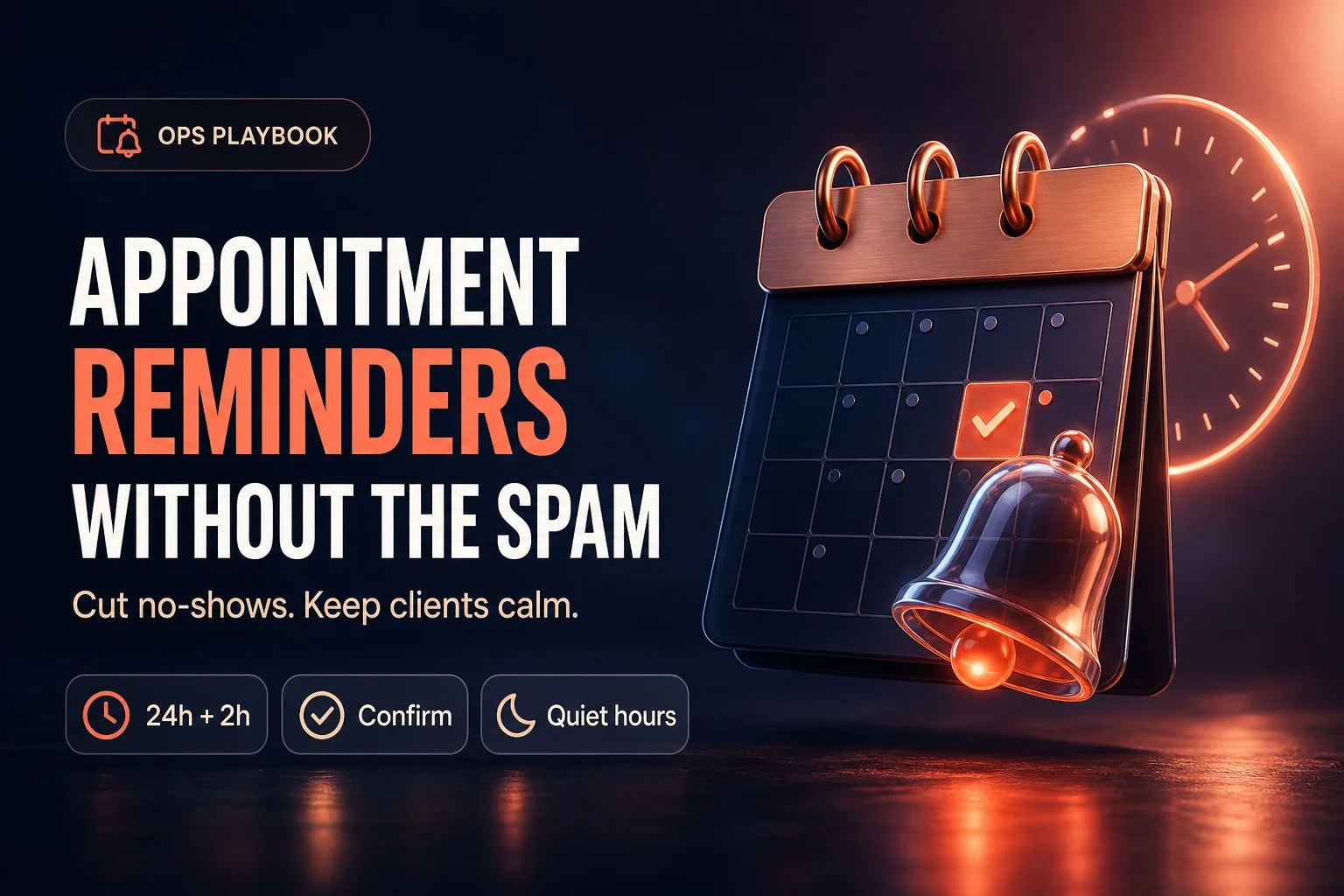
After the first reminder, add another Wait action, this time set to 2 hours before the appointment. Then send a second, shorter SMS: "Hi [First Name], your appointment is in 2 hours at [Appointment Start Time]. See you soon." This two-stage cadence (24 hours and 2 hours) is a proven pattern for reducing appointment no-shows across service industries. The 24-hour reminder gives the contact time to reschedule if they realize they have a conflict. The 2-hour reminder catches the contact on the day of, when they are planning their schedule and less likely to forget.
If you want to add a third touchpoint, consider a same-day morning reminder for afternoon appointments, or a confirmation request at the time of booking. The key is to avoid over-messaging. Three touchpoints (booking confirmation, 24-hour reminder, 2-hour reminder) is usually the upper limit before you start annoying people. More than that, and you train contacts to ignore your messages.

Confirmation Workflows: Ask, Wait, Tag, Escalate
A reminder that lands in the inbox is only half the battle. You also want to know who confirmed and who is at risk of no-showing, so you can prioritize follow-up calls or texts from a human. Confirmation workflows turn passive reminders into active data collection.
The pattern is straightforward: send a reminder that asks for a reply, wait for that reply, tag the contact based on whether they confirmed, and escalate unconfirmed contacts to a task or internal notification. Start with the same Customer Booked Appointment trigger and 24-hour wait. In your Send SMS action, write copy that explicitly asks for a reply: "Hi [First Name], you have an appointment tomorrow at [Appointment Start Time]. Reply YES to confirm or CANCEL to reschedule." The word YES is arbitrary; you can ask for CONFIRM, OK, or any keyword. The important part is setting the expectation that a reply is needed.
After the Send SMS action, add a Wait action configured to wait for a reply. Set the wait duration to something reasonable, like 4 hours or until 2 hours before the appointment. If the contact replies within that window, the workflow continues. If they do not reply, the workflow continues after the timeout.
Next, add an If/Else condition that checks whether the contact replied. You can use a condition like "Conversation Last Inbound Message" contains "YES" or "CONFIRM" (case-insensitive). If true, add a tag like "Appointment Confirmed" and optionally update the appointment status to Confirmed if your process requires it. If false (no reply or a reply that did not match your keywords), add a tag like "Appointment Unconfirmed" and create a task assigned to a user or team to follow up with a phone call.
Some operators also check for cancellation keywords in the same workflow. Add a second If/Else branch that checks if the reply contains "CANCEL" or "RESCHEDULE." If true, add a tag like "Appointment Cancel Requested," create a task for staff to call and reschedule, and exit the workflow so no further reminders are sent. This is not a full cancellation automation (the appointment still exists in the calendar until staff manually cancels it), but it flags the contact for immediate human attention.
Confirmation workflows give you a dashboard view of risk. Run a contact search or smart list for the tag "Appointment Unconfirmed" and you have a call list for your front desk or your client's front desk. Call those contacts a few hours before the appointment to confirm. This human touchpoint often saves the appointment and builds rapport. The workflow did the heavy lifting of identifying who needs the call; the human does the relationship work.
One caution: do not over-engineer keyword matching. Contacts will reply with "Yep," "Sure," "Ok," "Confirmed," "Yes please," and a hundred other variations. If you try to match every possible affirmative word, you will spend hours tweaking conditions. A simpler approach is to tag anyone who replies at all as "Appointment Reply Received," then have a human quickly scan those replies to confirm intent. Alternatively, use a broad match like "contains YES or contains CONFIRM or contains OK" and accept that a few edge cases will slip through. The goal is not perfection; the goal is to surface the high-risk no-reply contacts so you can call them.
Quiet Hours and Advance Window
A reminder that lands at two in the morning is worse than no reminder at all. It wakes the contact, annoys them, and associates your brand with spam. HighLevel workflows let you configure quiet hours using the Advance Window setting on Wait actions.
When you add a Wait action that waits relative to an appointment (for example, 24 hours before), you will see an Advance Window toggle. Turn it on and select the days and hours when the workflow is allowed to resume. For example, select Monday through Friday, 9 AM to 6 PM. If the 24-hour-before mark falls at 8 PM on a Tuesday, the workflow will pause until 9 AM Wednesday, then resume and send the reminder. This ensures your reminders land during business hours when the contact is awake and checking their phone.
Advance Window is especially important for businesses that serve clients across multiple time zones or for subaccounts where the contact's time zone may differ from the business location. HighLevel uses the contact's time zone if it is set in the contact record. If the contact's time zone is blank, the system falls back to the location (subaccount) time zone. Make sure your intake forms or booking forms capture time zone, or manually set it for contacts when you know they are remote.
One gotcha: if you set an Advance Window that is too narrow, and the appointment is scheduled outside that window, the reminder may never send. For example, if your Advance Window is Monday through Friday 9 AM to 6 PM, and the appointment is Saturday at 10 AM, a 24-hour-before reminder would need to fire Friday at 10 AM, which is inside the window. But a 2-hour-before reminder would need to fire Saturday at 8 AM, which is outside the window. The workflow will wait until the next allowed time (Monday 9 AM), by which point the appointment is long past. The solution is to either widen the Advance Window to include weekend mornings for weekend appointments, or accept that weekend appointments get fewer reminders. There is no perfect answer; you are balancing quiet hours against coverage.
Another option is to configure Advance Window only on the confirmation request (24 hours before) and leave the final reminder (2 hours before) without an Advance Window, so it always fires regardless of time. This ensures the day-of nudge lands even if it is early morning, while the longer-lead confirmation request respects business hours. Test both approaches with your client's schedule and see which produces better confirmation rates and fewer complaints.
Stop Conditions: Cancel, Reschedule, No-Show, Confirmed
Nothing frustrates a contact more than receiving a reminder for an appointment they already canceled. Stop conditions are the logic that exits a workflow or skips actions when the appointment is no longer active or no longer needs reminders.
The simplest stop condition is a tag. When a contact cancels or reschedules, add a tag like "Appointment Canceled" or "Appointment Rescheduled." At the top of your reminder workflow, right after the Customer Booked Appointment trigger, add an If/Else condition that checks if the contact has the "Appointment Canceled" tag. If true, exit the workflow immediately. This prevents any reminders from sending. When the contact books a new appointment, the Customer Booked Appointment trigger fires again (appointment-based triggers re-enter per new appointment even if Allow Re-entry is off), and the workflow starts fresh for the new appointment.
You can also check appointment status. HighLevel appointments have a status field: Confirmed, Showed, No-Show, Canceled, etc. In your workflow, add a condition that checks the appointment status. If status is Canceled or No-Show, exit the workflow. If status is Confirmed, you might skip the confirmation request and only send the final day-of reminder. This requires that your team or your client's team is diligent about updating appointment status in the calendar UI. If status is rarely updated, tag-based stop conditions are more reliable because you control when tags are added via workflows.
Reschedule is trickier. When a contact reschedules via the reschedule link in a calendar notification, HighLevel cancels the old appointment and creates a new one. The old appointment triggers a Cancellation notification (if you have it enabled). The new appointment triggers an Appointment Booked notification and a new Customer Booked Appointment workflow enrollment. The old workflow is still running, waiting to send reminders for the now-canceled appointment. If you do not have a stop condition, the old workflow will send reminders for a time slot that no longer exists. The fix is the same: check for a "Appointment Canceled" tag or a Canceled status at each wait step, and exit if true. Some operators add this check before every Send SMS or Send Email action, creating a safety net that catches cancellations no matter when they happen.
Another stop condition is confirmation. If a contact replies YES and you tag them "Appointment Confirmed," you might want to skip the 2-hour reminder or send a shorter version. Add an If/Else condition before the 2-hour wait that checks for the "Appointment Confirmed" tag. If true, send a brief "See you soon" message or skip the message entirely. If false, send the full reminder with a confirmation request. This reduces message volume for engaged contacts while maintaining coverage for unresponsive ones.
Manual appointment creation is a common failure mode. If a staff member creates an appointment directly in the calendar UI (not via a booking link), the Customer Booked Appointment trigger does not fire, so the workflow never starts. That contact will not receive workflow-based reminders. They will only receive calendar notifications. Make sure your team knows this distinction. If you rely on workflows for confirmation tagging and escalation, you need contacts to book via booking links, or you need to manually tag and follow up on staff-created appointments. Some operators solve this by training staff to always send a booking link, even for phone bookings, so the contact clicks through and the trigger fires. Others accept that manually created appointments are lower volume and handle them with calendar notifications alone.
Linking Reminders to Calendar Booking
Reminders only work if the booking actually creates an appointment in the calendar. This sounds obvious, but it is a common failure point when operators clone workflows across subaccounts or modify booking forms without testing end to end.
When a contact fills out a booking form or clicks a booking link, HighLevel creates an appointment object tied to the selected calendar. That appointment object is what calendar notifications and workflow waits reference. If the booking flow is broken (wrong calendar selected, calendar disabled, calendar permissions misconfigured), the appointment may not be created, or it may be created in the wrong calendar. The contact thinks they booked, but no reminders fire because there is no appointment to trigger them.
The fix is to test the entire booking flow in each subaccount. Use a test contact, go through the booking link or form, select a time, submit, and verify that an appointment appears in the calendar. Then verify that the Customer Booked Appointment workflow enrolls the contact (check the workflow history or the contact's workflow tab). Then verify that calendar notifications fire (check the contact's conversation thread for the booking confirmation). If any step fails, trace backward: check the calendar settings, check the booking form or link configuration, check the workflow trigger filters.
For subaccounts with complex GoHighLevel calendars and round-robin booking, make sure the calendar group is correctly configured and that all calendars in the group have consistent notification settings. If one calendar in the group has reminders enabled and another does not, contacts will have inconsistent experiences depending on which team member they are assigned to. Standardize notification and workflow settings across all calendars in a group, or accept that you will need to troubleshoot edge cases when a contact books with the one team member whose calendar is misconfigured.
Cadence Design: Timing and Channel Without Annoying Clients
The right cadence depends on the appointment type, lead time, and client expectations. A same-day consultation booked an hour out needs a different cadence than a quarterly strategy session booked six weeks in advance. That said, a few principles hold across most service businesses.
First, always send an immediate booking confirmation. This is non-negotiable. The contact just took action; they need proof that the system captured it. Use a calendar notification (Appointment Booked Unconfirmed) sent via email and SMS. Keep it short: "Thanks for booking. Your appointment is [date] at [time]. Here is your reschedule link if you need to change it." This message is not a reminder; it is a receipt. It also gives the contact a chance to catch mistakes (wrong date, wrong time, wrong service) before they forget.
Second, send a mid-window reminder if the appointment is more than 48 hours out. For appointments booked a week or more in advance, a reminder three days before or 48 hours before helps keep the appointment top of mind. For appointments booked 24 to 48 hours out, skip the mid-window reminder and go straight to the day-of cadence. The goal is to remind without nagging. If the appointment is only two days away, the contact probably remembers. If it is two weeks away, they probably do not.
Third, send a day-of reminder. This is your last chance to catch a no-show. A reminder 2 hours before or the morning of the appointment (for afternoon appointments) is standard. Keep it short and action-oriented: "Your appointment is in 2 hours. See you at [location]." If you asked for confirmation in the 24-hour reminder and the contact did not reply, this is also a good time to add a line like "Reply YES if you are still coming or call us to reschedule."
The rule of three is a useful heuristic: booking confirmation, mid-window reminder, day-of reminder. Three touchpoints give you coverage without crossing into spam territory. Some high-value or high-complexity appointments (surgery consults, multi-hour workshops, onboarding calls) justify a fourth touchpoint, such as a one-week-before reminder with prep instructions. Most appointments do not. If you find yourself designing a five-message cadence, step back and ask whether you are solving a communication problem or creating one.
Channel choice matters. SMS is immediate and has high open rates, but it is also intrusive. Use SMS for short, time-sensitive messages: confirmations, same-day reminders, confirmation requests. Email is less intrusive and better for longer content: prep instructions, intake forms, what to bring, directions, parking details. Do not send the same message on both channels at the same time. If you send an SMS confirmation, send an email with additional details a few minutes later or an hour later. If you send an email reminder 24 hours before, send an SMS reminder 2 hours before. Stagger the channels so each message adds value rather than repeating the previous one.
One mistake operators make is writing SMS copy like an email. SMS should be one or two sentences, max 160 characters if possible (one SMS segment). If your message is three paragraphs, it belongs in an email, not an SMS. Contacts will not read a wall of text on their phone, and carriers may split it into multiple segments, which looks broken and spammy. Write tight. "Hi [First Name], your appointment is tomorrow at [time]. Reply YES to confirm." That is all you need.
Common Failure Modes
Even experienced operators hit these failure modes when setting up or cloning appointment reminder workflows. Knowing them in advance saves hours of troubleshooting.
Double reminders (calendar notification plus workflow). You enabled a calendar notification reminder at 24 hours before and also built a workflow with a 24-hour wait and Send SMS. The contact gets two texts within seconds, both saying roughly the same thing. Fix: turn off one or the other. Decide which layer owns each message type and disable the duplicate.
Wrong contact or guest receiving reminders. You set the workflow enrollment to "Contact and Guests" but only the guest should receive reminders (for example, a parent books for a child, and the child is the guest). The parent gets reminders they do not need. Fix: change enrollment to "Guests only" or add a condition that checks a custom field or tag to determine who should receive messages.
Spammy cadence. You send a booking confirmation, a 48-hour reminder, a 24-hour reminder, a 12-hour reminder, a 2-hour reminder, and a 30-minute reminder. The contact is overwhelmed and starts ignoring your messages, or worse, they reply STOP and opt out of SMS entirely. Fix: cut the cadence to three touchpoints max. Quality over quantity.
Blank reschedule or cancellation links. Your workflow Send SMS action includes a reschedule link merge field, but it comes through blank in the message. This happens because the workflow does not have full appointment context, or the merge field syntax is wrong. Fix: use calendar notifications for messages that need reschedule or cancellation links, or include a phone number instead of a link in workflow messages.
Reminders after cancel or reschedule. A contact cancels their appointment, but your workflow keeps sending reminders because you did not add a stop condition. Fix: add an If/Else condition at each wait step that checks for a "Appointment Canceled" tag or a Canceled appointment status, and exit the workflow if true.
Reminders for manually booked appointments. Your staff creates an appointment directly in the calendar UI, and the contact never receives workflow reminders because the Customer Booked Appointment trigger did not fire. Fix: train staff to send booking links even for phone bookings, or rely on calendar notifications for manually created appointments.
Recurring appointments not supported. You set up a workflow for a recurring appointment series, but the Customer Booked Appointment trigger does not support recurring appointments, so only the first appointment in the series triggers the workflow. Fix: use calendar notifications for recurring appointments, or manually create separate single appointments if you need workflow-based confirmation logic.
Quiet hours misconfigured. You set an Advance Window of Monday through Friday 9 AM to 5 PM, but many of your appointments are evenings or weekends, so reminders never send or send too late. Fix: widen the Advance Window to include evenings and weekend mornings, or remove the Advance Window from the final day-of reminder so it always fires.
Wrong calendar filter. You cloned a workflow from another subaccount and forgot to update the calendar filter in the Customer Booked Appointment trigger. The workflow never enrolls contacts because they are booking on a different calendar. Fix: always check and update trigger filters when cloning workflows across subaccounts or calendars.
Merge fields not populating. Your reminder says "Hi , your appointment is at ." The merge fields are blank because the contact record is missing first name or the appointment object is missing start time (rare, but possible if the appointment was created via API with incomplete data). Fix: test with real contact data, and add fallback text in your message copy, for example "Hi there" instead of "Hi [First Name]" so the message is still readable if the field is blank.
Testing Checklist
Before you launch a reminder workflow in a live subaccount, run through this checklist with a test contact and a test appointment.
Book a real test appointment using the booking link or form your contacts will use. Do not create the appointment manually in the calendar UI, because that will not trigger the Customer Booked Appointment workflow. Use a real phone number and email you control so you can see exactly what the contact sees.
Verify the booking confirmation arrives immediately via calendar notification. Check both SMS and email if you enabled both channels. Confirm that merge fields populate correctly: first name, appointment date and time, location, reschedule link.
Verify the workflow enrolls the test contact. Go to the workflow and check the workflow history, or go to the contact record and check the Workflow tab. You should see the contact enrolled in the reminder workflow with a status of "waiting" at the first Wait action.
Wait for the first reminder to fire, or manually advance the workflow if you are in a hurry (some operators temporarily set the wait to 5 minutes instead of 24 hours for testing, then change it back). Confirm the reminder SMS or email arrives and that merge fields are correct.
Reply to the confirmation request if your workflow asks for one. Verify that the workflow tags the contact correctly (for example, "Appointment Confirmed") and that any conditional logic (skip the next reminder, create a task, etc.) executes as expected.
Cancel the test appointment via the reschedule link or manually in the calendar UI. Verify that the cancellation notification fires (if enabled) and that the reminder workflow stops sending further messages. If the workflow does not stop, you are missing a stop condition. Add it and test again.
Reschedule the test appointment. Verify that a new workflow enrollment is created for the new appointment time and that the old workflow stops. Check that the new reminders reference the new appointment time, not the old one.
Test with a guest if your booking flow supports guests. Verify that the guest receives reminders if you set enrollment to "Contact and Guests" or "Guests only." Verify that the guest does not receive reminders if you set enrollment to "Contact only."
Test quiet hours by booking an appointment that would trigger a reminder outside your Advance Window. For example, book an appointment at 8 AM tomorrow, so the 24-hour reminder would fire at 8 AM today. If your Advance Window is 9 AM to 6 PM, the reminder should wait until 9 AM. Verify that it does.
Test across time zones if your subaccount serves remote clients. Set the test contact's time zone to something different from the location time zone and verify that reminders land at the correct local time for the contact.
Run this checklist every time you clone or modify a reminder workflow. It takes 20 minutes and catches 90 percent of configuration errors before they reach real clients.
Maintenance and Iteration
Appointment reminder workflows are not set-and-forget. Client behavior changes, business hours shift, new services get added, and what worked six months ago may need tuning today.
Review confirmation rates monthly. Pull a list of contacts who booked appointments in the last 30 days and check how many have the "Appointment Confirmed" tag versus "Appointment Unconfirmed." If your confirmation rate is below 50 percent, your confirmation request may be unclear, your wait-for-reply timeout may be too short, or contacts may not be seeing the message at all (check spam filters, check SMS opt-in status). If your confirmation rate is above 80 percent, your cadence is working. If it is 90 percent or higher, you might be over-reminding; consider cutting one touchpoint and see if the rate holds.
Prune duplicate workflows. As you test and iterate, you may end up with multiple versions of the same reminder workflow, some active, some paused, some half-built. Every few months, audit your workflow list and delete or archive anything that is not actively used. Duplicate workflows create confusion when troubleshooting and increase the risk of double-messaging.
Keep templates short. As you add services or locations, you may be tempted to add more detail to your reminder messages. Resist. Every extra sentence increases the chance that the contact skims or ignores the message. If you need to communicate prep instructions or intake forms, send those in a separate email after the booking confirmation, not in the reminder cadence.
Re-test after changes. Any time you change a calendar setting, add a new phone number, update a booking form, or modify a workflow, book a test appointment and verify the entire flow. It is easy to break a working system with a small change. Testing catches it before clients do.
Solicit feedback from clients and from your client's front desk staff. Ask whether contacts are showing up more consistently, whether they mention the reminders, whether they complain about too many messages. Front desk staff often have insight into why no-shows happen (forgot, thought it was a different day, did not realize they needed to confirm) that can inform your cadence and copy.
Next Steps
Start with one calendar and one simple workflow: Customer Booked Appointment trigger, 24-hour wait, Send SMS reminder, 2-hour wait, Send SMS reminder. Add calendar notifications for booking confirmation and cancellation. Test it with a real appointment. Once that works, layer in confirmation requests, tagging, and stop conditions. Then clone the workflow to other calendars or subaccounts and adjust filters and copy as needed.
The goal is not to build the perfect reminder system on day one. The goal is to build a system that reduces no-shows without annoying clients, gives you visibility into who confirmed and who needs follow-up, and stops reminders when appointments are canceled or rescheduled. Everything else is optimization.
If you manage multiple subaccounts, document your standard reminder cadence and workflow structure so you can clone and deploy quickly when onboarding new clients. Include screenshots of trigger settings, wait configurations, and message templates. Future you will thank present you when you need to spin up a new subaccount in 20 minutes instead of two hours.
Appointment reminders are one of the highest-leverage automations in HighLevel. They save time, reduce revenue loss, and improve client satisfaction. Done right, they are invisible to the contact and indispensable to the business. Done wrong, they are noise. Use the patterns in this guide to build the former, avoid the latter, and give your clients the kind of reliable, respectful communication that keeps their calendars full and their no-show rates low.
by Darius Gaynor